Generate a HEAL-compliant Data Dictionary
A tool is available to help investigators generate HEAL-compliant variable-level metadata (VLMD) from an existing data dictionary or codebook. This VLMD tool - available as part of the HEAL Software Development Kit (HEAL-SDK) - takes CSV, TSV, JSON or REDCap CSV export files as inputs, and outputs a HEAL-compliant JSON VLMD file that can be uploaded to and associated with your study on the HEAL Data Platform.
- VLMD templates that you can download and fill out, examples of valid and invalid HEAL VLMD, and the HEAL VLMD schemas are available in GitHub.
- Please note that “name” and “description” are required fields in HEAL VLMD. If your data dictionary does not contain these two fields, it will not pass validation.
- Other fields in the VLMD schema such as title, type, constraints.enum, etc. are encouraged but not required.
Once you have a copy of your data dictionary or VLMD, you can translate it to HEAL-compliant VLMD or validate it using the VLMD tool. Additional guidance on preparing variable-level metadata is available here.
The instructions below describe how to either use the tool in HEAL workspaces (no local installation needed!) or install and use the VLMD tool on your local machine.
Option 1: Use the Tool in Python
HEAL Workspace documentation
Before using Workspace, please read our Workspace documentation to learn more about Workspace features.
The VLMD tool is pre-installed in workspaces on the HEAL Data Platform, so you can use it without having to install it locally. Access a workspace to use the VLMD tool by following the instructions below:
-
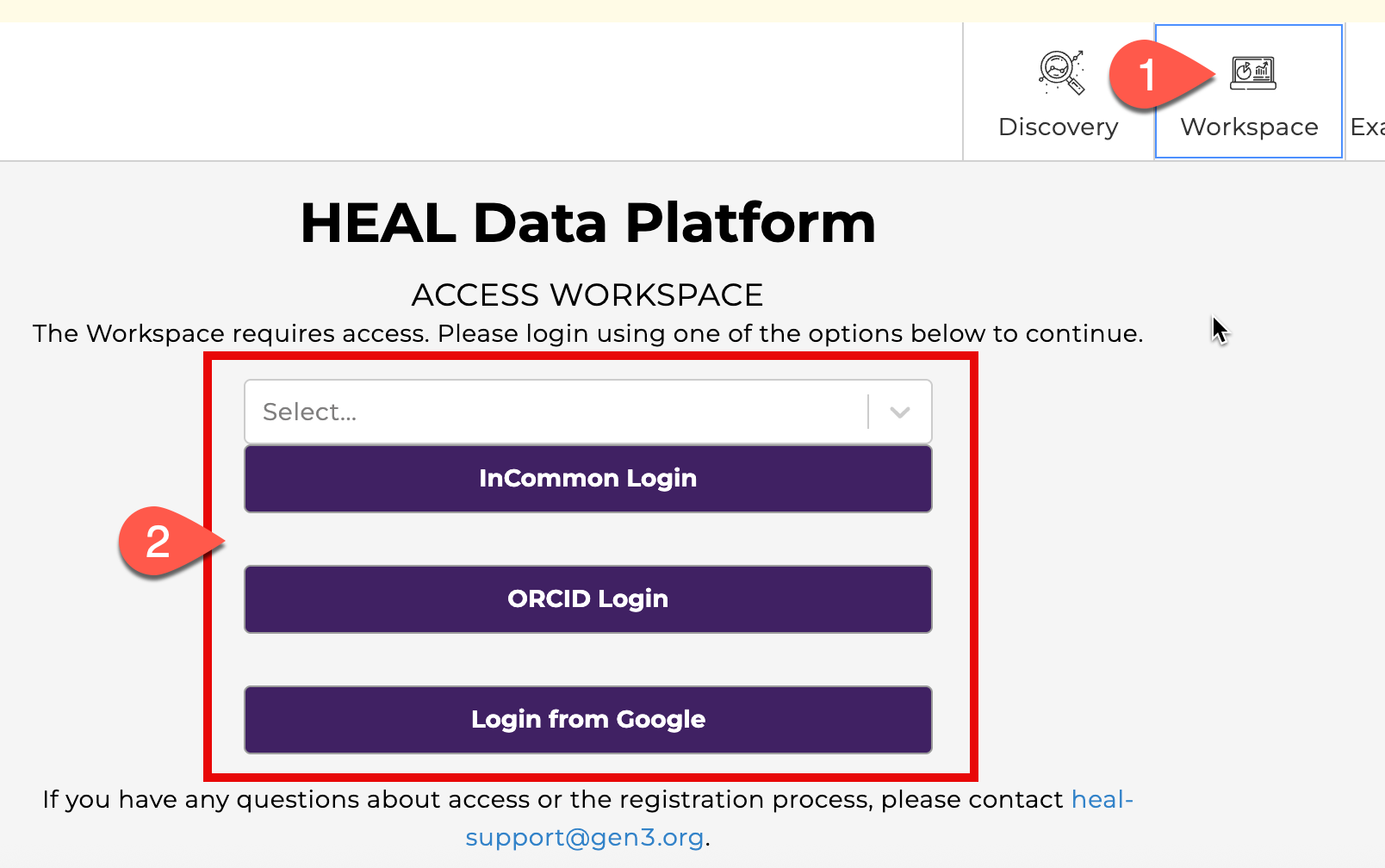
Navigate to healdata.org and click on the Workspaces tab, where you’ll be prompted to log in.
-
If this is your first time accessing a workspace, you’ll first need to request access.
-
-
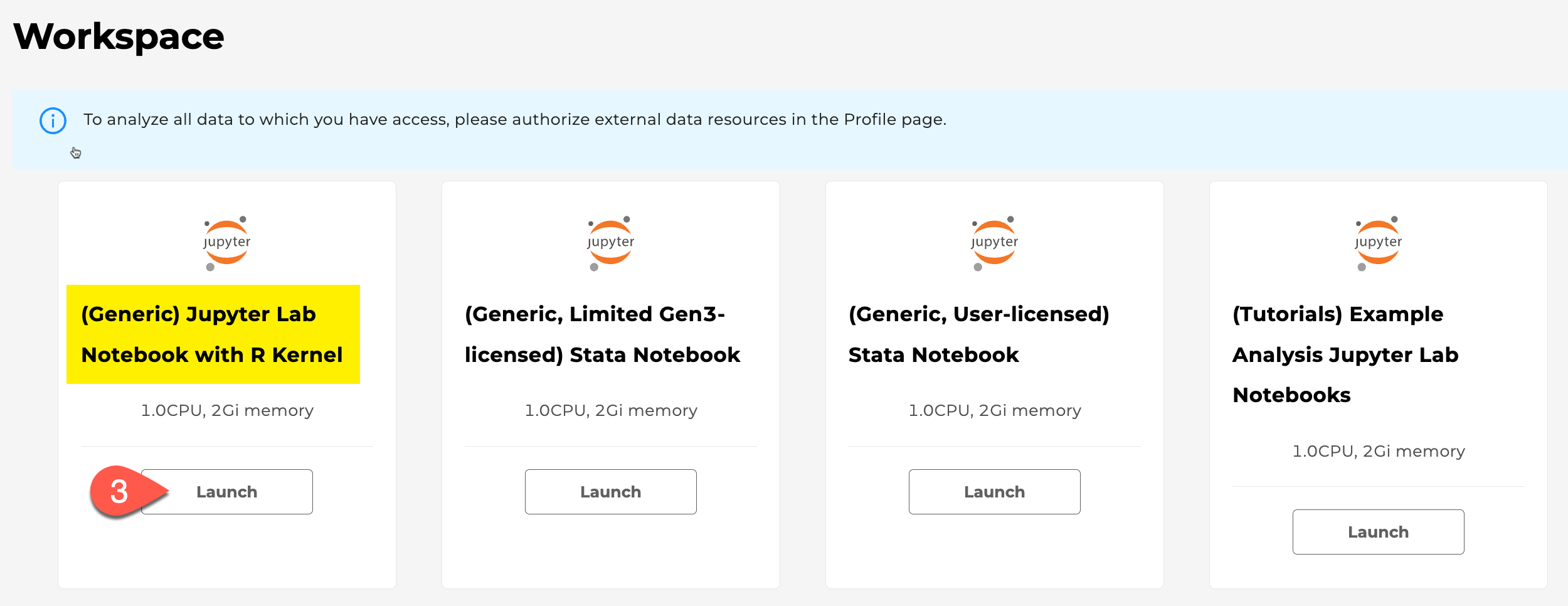
From within the workspace, launch the JupyterLab with Python and R Kernels workspace image.
-
Once the workspace is launched, do the following steps in order:
- Double-click on the
/pd(persistent drive) folder (#4) in the left navigation pane to change to the /pd directory - Once in /pd, click the Upload icon (#5) to upload your data dictionary file to be analyzed or converted. Please note that only files saved to the /pd directory will persist after your workspace session is terminated.
-
Open a new Launcher tab by clicking the
+next to theheal-welcome.ipynbtab. Click on the Python Jupyter notebook icon (#6) to open an empty notebook in the /pd.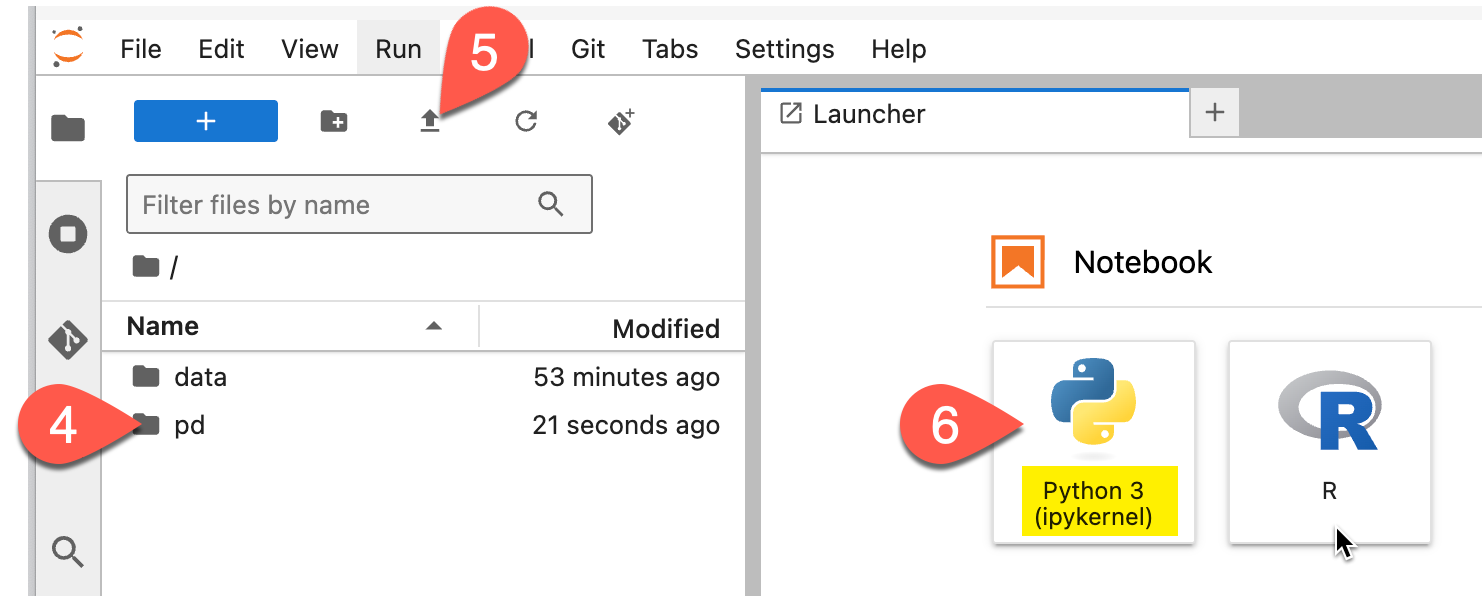
- Double-click on the
Now you are ready to generate HEAL-compliant VLMD!
Retrieve any updates to the VLMD tool:
To ensure the VLMD tool is fully updated, first paste and run this command into a cell of the notebook:
!pip install --upgrade heal-sdk
After updating the VLMD tool, you need to restart the kernel for the updates to be implemented in the workspace. To do that: Click on the Kernel menu in the menu bar at the top of the workspace and select Restart Kernel.
You can verify the version of the VLMD tool that is in use in the workspace by running
!pip show heal-sdkin a new cell.
Generate HEAL-compliant VLMD from an existing data dictionary:
Copy the example code below and paste it into a new Jupyter notebook cell. Update the filename and dictionary title for your data dictionary, then run the cell.
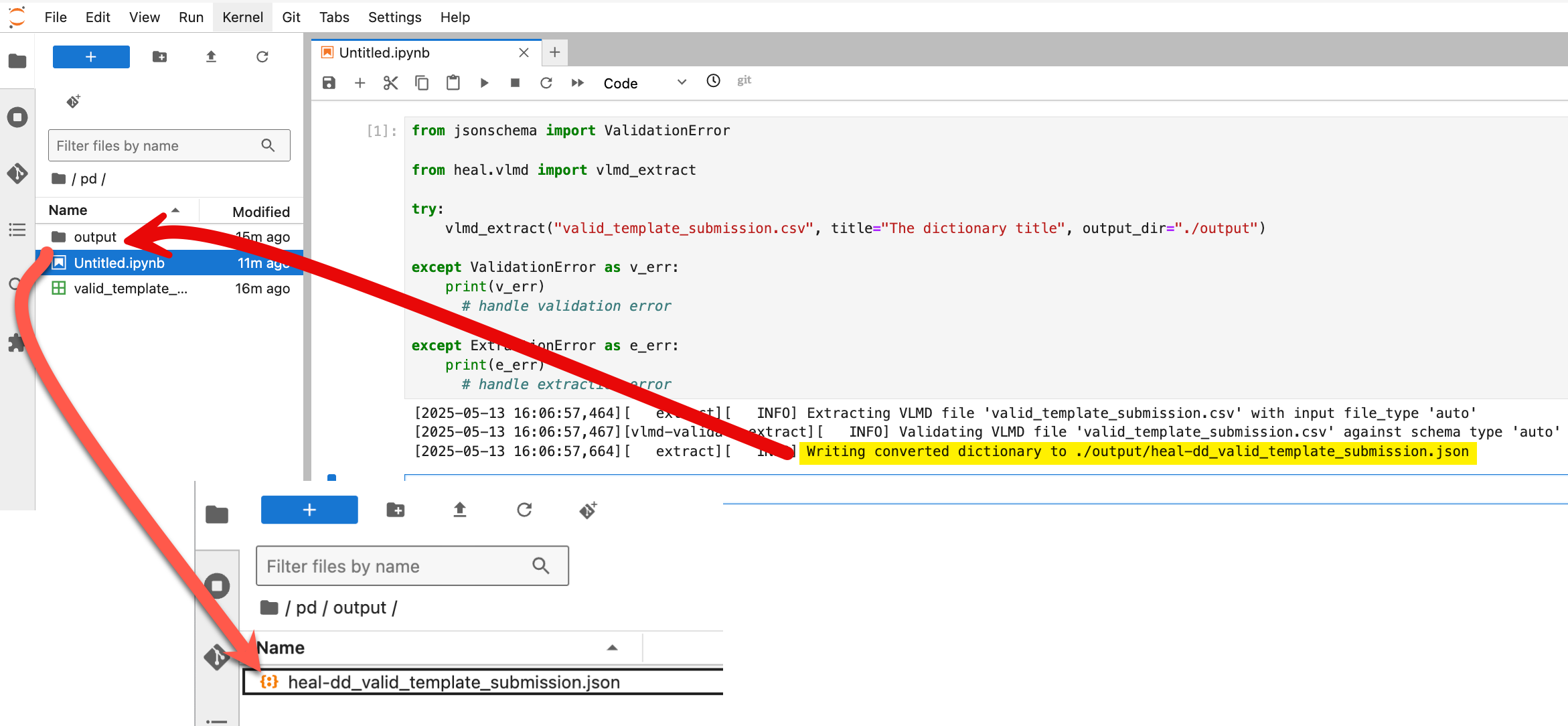
The extract module generates a HEAL-compliant VLMD file from a CSV, TSV, JSON or REDCap CSV data dictionary (filename "vlmd_for_extraction.csv" in the example below). Upon successful extraction, the resulting VLMD file will be saved to a subfolder called output; this folder will be in the /pd if you ran the notebook from inside the /pd. (See yellow highlight and red arrows below)
The vlmd_extract() method raises a jsonschema.ValidationError for an invalid input file, and raises ExtractionError for any other type of error.
from jsonschema import ValidationError
from heal.vlmd import vlmd_extract, ExtractionError

try:
    vlmd_extract(
        "vlmd_for_extraction.csv",
        title="The dictionary title",
        output_dir="./output"
    )

except ValidationError as v_err:
    print(v_err)
    # handle validation error

except ExtractionError as e_err:
    print(e_err)
    # handle extraction error
By default, the Python tool extracts to a JSON file. But, there is an optional output_types argument that configures extraction to a CSV, or both a CSV and JSON file. Valid values for this parameter are strings or Python lists for single format (e.g., "csv" or "json", or ["csv"] or ["json"]), or a Python list to export to both file types (["csv", "json"]). It should be appended to the arguments in vlmd_extract, as shown in the example below:
try:
    vlmd_extract(
        "vlmd_for_extraction.csv",
        title="The dictionary title",
        output_dir="./output",
        output_type=["csv", "json"]
    )
Validate a VLMD file:
This module checks (validates) an existing VLMD file to see if it follows the HEAL specifications after filling out a template or annotating after extracting from a different file format.
The vlmd_validate() method raises a jsonschema.ValidationError for an invalid input file and will raise an ExtractionError if the input_file cannot be converted.
from jsonschema import ValidationError

from heal.vlmd import vlmd_validate, ExtractionError

input_file = "vlmd_dd.json"
try:
    vlmd_validate(input_file)

except ValidationError as v_err:
    print(str(v_err.message))
    # handle validation error

    # for a full ValidationError description, comment out the above print
    # message and uncomment below:
    # print(v_err)

except ExtractionError as e_err:
    print(e_err)
    # handle extraction error
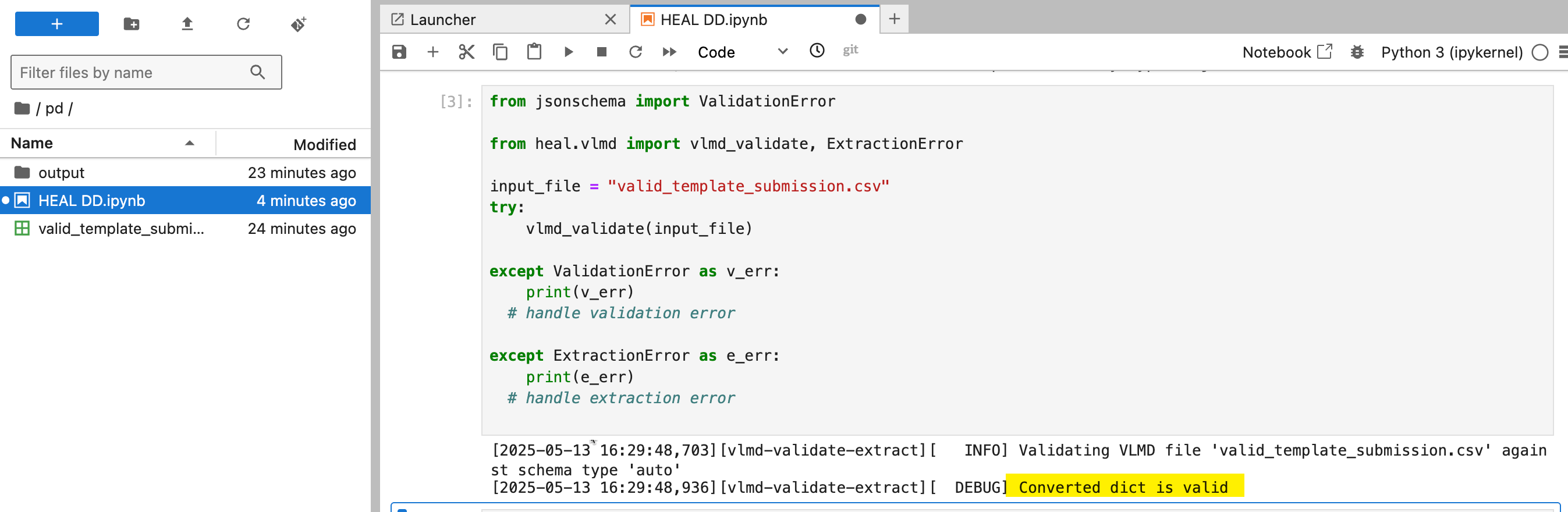
- If your VLMD file adheres to the HEAL VLMD schema, the output from this command will include a message that says
Valid(see highlight in the screenshot below). - If your VLMD file does not validate against the HEAL VLMD schema, the output from this command will indicate what change(s) are necessary to adhere to the schema.
Option 2: Use the VLMD Tool at the Command Line
The VLMD tool can be installed and used directly on your local machine from the command line. Install the tool by following the instructions below:
-
Open your computer’s command prompt
- On a Mac, click the Launchpad icon in the Dock, type “Terminal” in the search field and click on the Terminal icon
- On a PC, type “Command Prompt” in the Windows search bar and click on the Command Prompt icon
-
In the command prompt, type
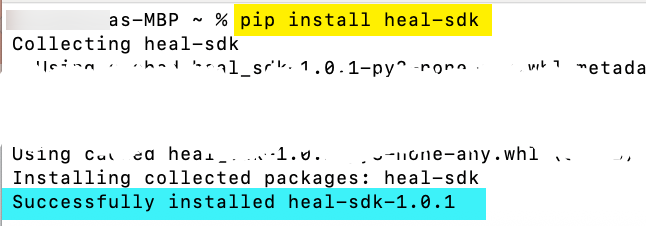
pip install heal-sdkand push Return/Enter (see yellow highlight in screenshot below). The installation process will take no more than a few minutes to complete. If you have already installed heal-sdk, then runpip install --upgrade heal-sdkto ensure you have the latest version of the tool.- This step requires Python to be installed; you can download Python here if needed.
- Successful installation will report
Successfully installed heal-sdk, as shown in the blue highlight below
-
Once the tool is installed, you are ready to generate HEAL-compliant VLMD from the command line!
View a list of available commands and options:
Run the command heal vlmd --help
Generate HEAL-compliant VLMD from an existing data dictionary:
The VLMD tool can be used to extract HEAL-compliant VLMD from a CSV, TSV, JSON or REDCap CSV data dictionary. Use the following command to extract VLMD from an input file (here, the example file is called vlmd_for_extraction.csv):
heal vlmd extract --input_file "vlmd_for_extraction.csv" --title "The dictionary title" --output_dir "./output"
- Note that, if you are extracting VLMD from a JSON file that already includes a root-level title field, the root-level title will be included in the extracted VLMD, so the
titleargument in the command can be omitted. - By default, the tool extracts to a JSON file. But, there is an optional
--output_typeparameter that configures extraction to a CSV, or both a CSV and JSON file. This would be appended to the command above; eg,heal vlmd extract --input_file "vlmd_for_extraction.csv" --title "The dictionary title" --output_dir "./output" --output_type "csv"or, to export to both file types,...--output_type "csv, json". - Upon successful extraction, the resulting VLMD file will be saved to a subfolder called
output. (See yellow highlight below) -
If you get an
input file does not existerror, try including the path in the filename argument, as shown in the example below. To find the path:- PC: Select the file in Windows File explorer, then select the three dots at the top of the file explorer window. You will then see an option to Copy Path, which will copy the path to that file location to your clipboard. Paste the path into the input file argument.
- Mac: Select the file or folder in Finder. Hold down the Option key, Right-click and select
Copy <selected item> as Pathnameto copy the full path to the clipboard. Paste the path into the input file argument.

Validate a VLMD file:
Check (validate) an existing VLMD file to see if it follows the HEAL specifications after filling out a template or annotating after extracting from a different file format.
Run the command heal vlmd validate --input_file "vlmd_for_validation.csv" (where "vlmd_for_validation.csv" is the file name of the VLMD file you are trying to validate)
- If your VLMD file adheres to the HEAL VLMD schema, the output from this command will include a message that says
Valid. (See yellow highlight below) - If your VLMD file does not validate against the HEAL VLMD schema, the output from this command will indicate what change(s) are necessary to adhere to the schema.

Next Steps
Once you’ve created your HEAL-compliant VLMD, you’re now ready to submit it to the HEAL Data Platform! Please see our instructions on submitting a data dictionary:
If you need any help generating a HEAL-compliant data dictionary with the VMLD Tool, or have a general inquiry, please contact us at heal-support@gen3.org.